Allowances & Upgrades
Builder allowance and upgrade tracking software
Your standard inclusion is the allowance, and every upgrade is priced on top of it. Your client sees the difference before they choose, you both see the running upgrade total, and once it is settled it flows into variations and purchase orders.
Upgrade Pricing Example
Your standard inclusion is the allowance. Every other item carries the upgrade price on top of the contract, so your homeowner sees the difference before they choose and a running total of everything they have upgraded.
| Kitchen benchtop | Upgrade |
|---|---|
| Laminate | Included |
| Porcelain | +$2,400 |
| Marble (slab not yet chosen) | P.O.A. |
- Included
- The standard inclusion is the allowance. It shows no badge at all, so your client can tell an inclusion from an extra at a glance.
- +$2,400
- Each non-standard product carries an upgrade badge showing its additional price on top of the contract.
- P.O.A.
- Anything you cannot price until you have quoted it shows a P.O.A. badge instead of a figure.
Every upgrade tracked
You set the upgrade price in your item template, and it carries across onto every job. Leave it blank for your standard inclusions, covered under the client's allowance.
In the client portal or showroom display, each product card shows its price badge. A running upgrade total keeps track of any additional costs, keeping your client informed.
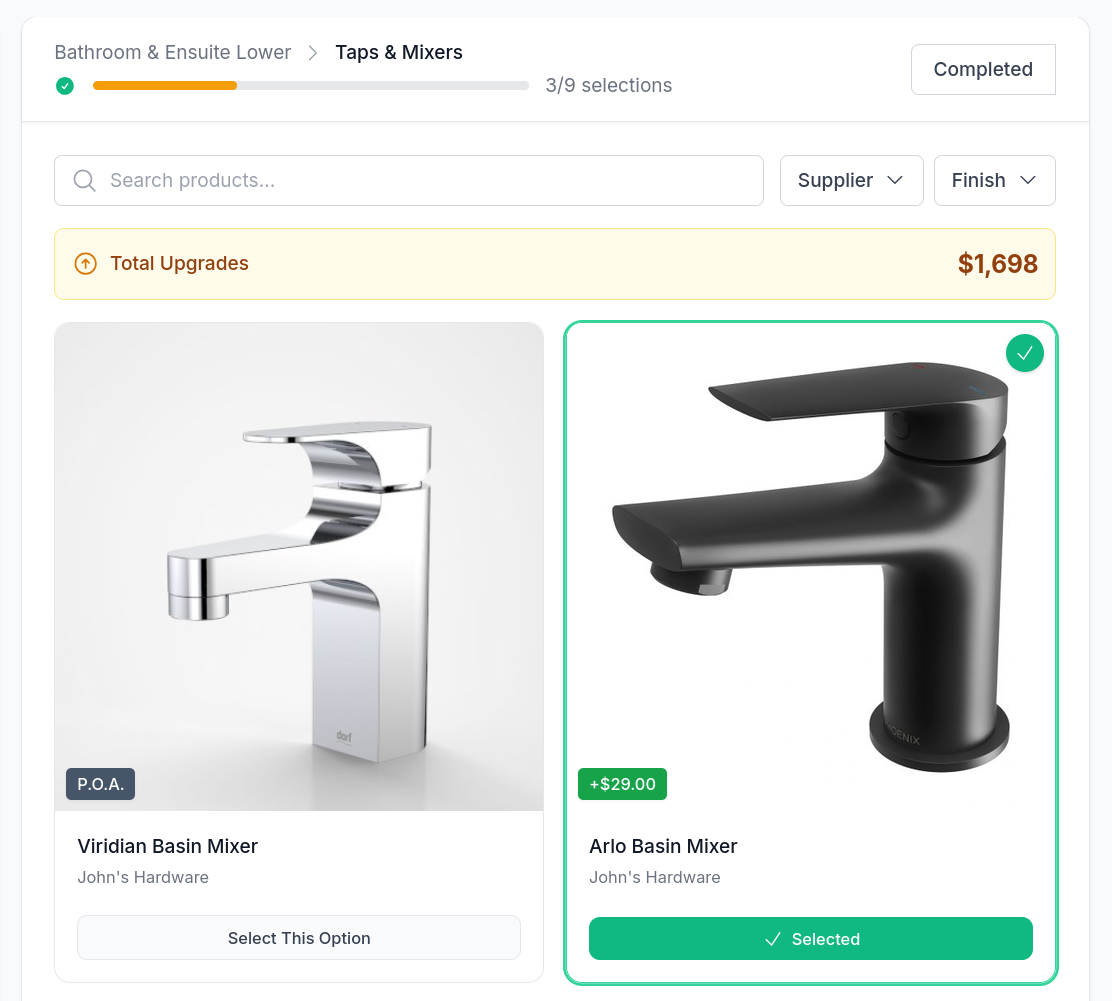
Price on Application
Items that cannot be priced in advance can be marked with a P.O.A. badge and are kept out of the running total. This can be particularly useful for items that require other selections to be made first.
P.O.A. items are shown as a separate count of how many your client has chosen, so they can be signed off once quoted.
Lock selections once they are settled
Lock a single area once it is signed off, or lock the whole job. Your client can no longer change or remove a choice in a locked area, in the portal or in showroom mode.
Because you lock area by area, you can finalise the bathrooms while your client is still deciding on the kitchen.
Sign-off and variations
The upgrade total is visible to both you and your client, ready to be signed off on your selections schedule or as part of a variation. Variations appear in your client's portal with the amount and the detail, and they accept with an on-screen signature.
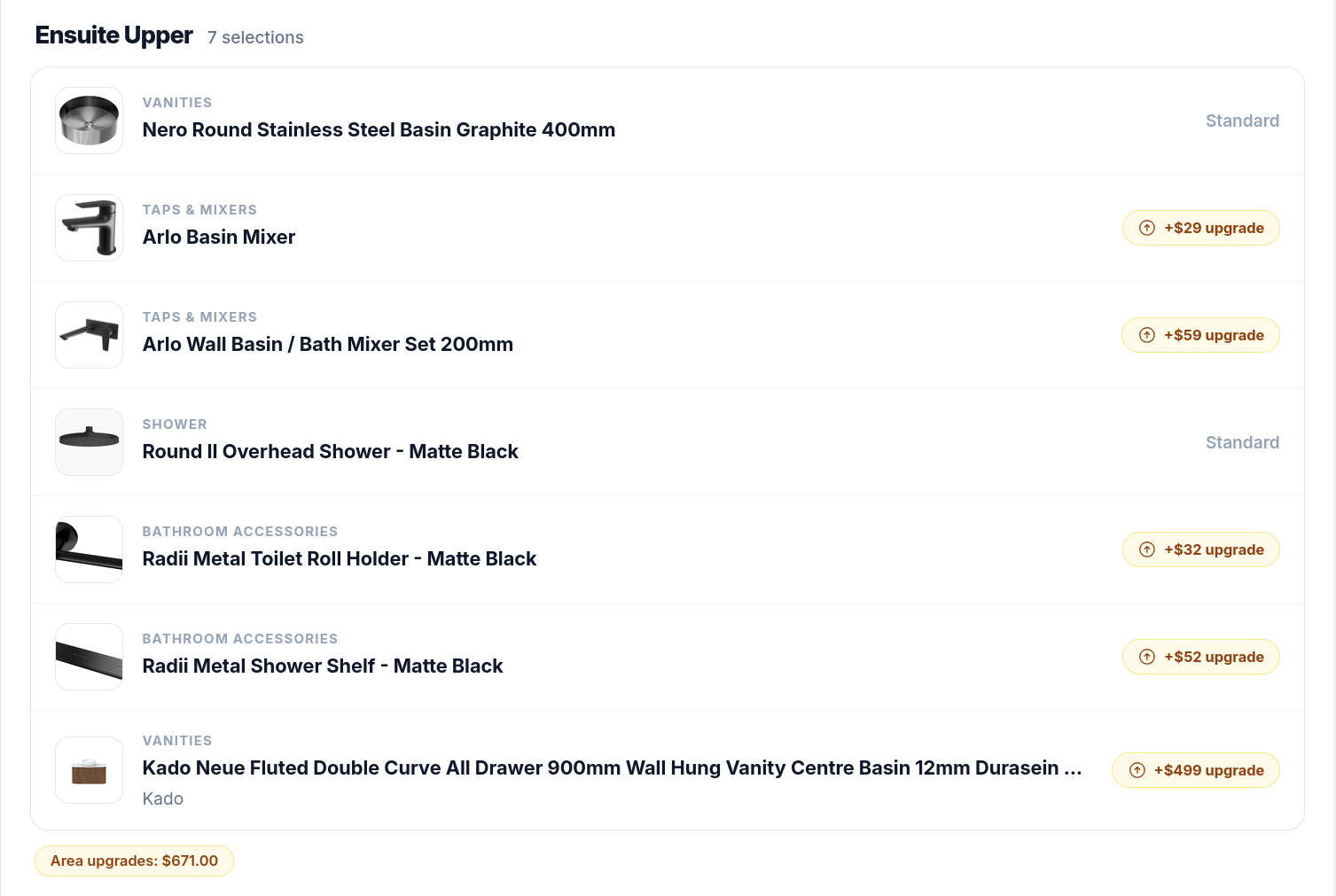
Through to procurement
Every choice lands on the job's Chosen Selections screen, where you add quantities and supplier notes and raise purchase orders from the same record. See how that works on the trade portal and client selections pages.
See HomePulse in action
Book a personalised demo to discover how HomePulse can streamline your operations, reduce admin overhead, and help you deliver projects on time.
Book a demo